Analytics Guide
Analytics is one of the most important areas for a newcomer. After every test call or campaign, open Analytics from the left navigation to understand what happened and what should be improved.
Table of Contents
- Where to open Analytics
- Analytics overview dashboard
- Call Logs
- Reviewing recordings, transcripts, and outcomes
- Logs (Historic and Live Calls)
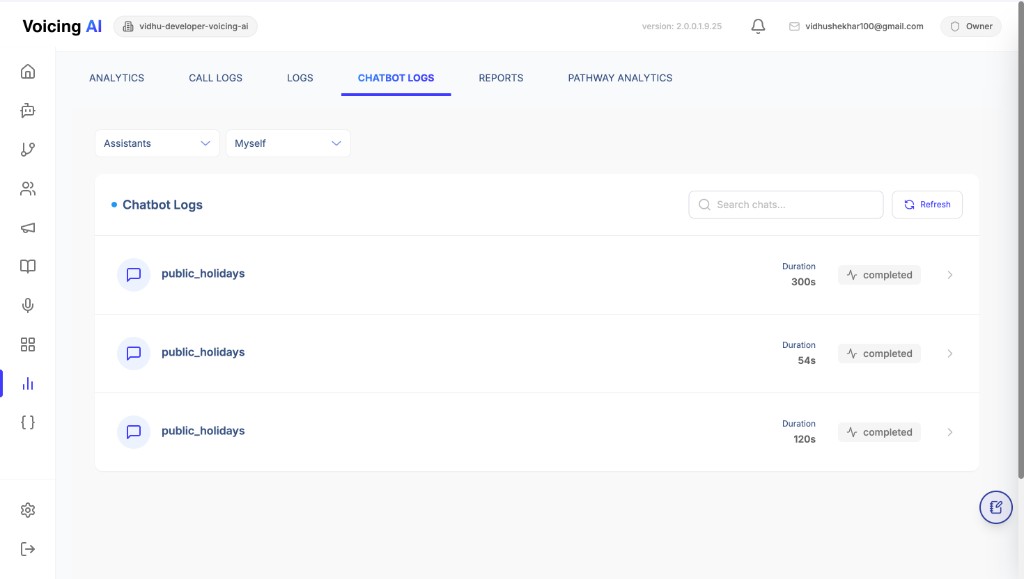
- Chatbot Logs
- Pathway Analytics
- What to check after calls or campaigns
- Metrics to Review
- Example Analytics Summary
- How to Interpret Results
Where to open Analytics
- Log in to the Voicing AI platform.
- Confirm you are in the correct workspace (top of the screen).
- Click Analytics in the left sidebar.
- Use the tabs at the top to switch between views:
- Analytics — summary metrics and dashboard cards
- Call Logs — detailed table of every call with IDs, duration, and status
- Logs — quick list of historic or live calls with filters
- Chatbot Logs — text chat sessions with assistants
- Reports — reporting views (if enabled for your workspace)
- Pathway Analytics — visual view of how callers move through a pathway
Analytics overview dashboard
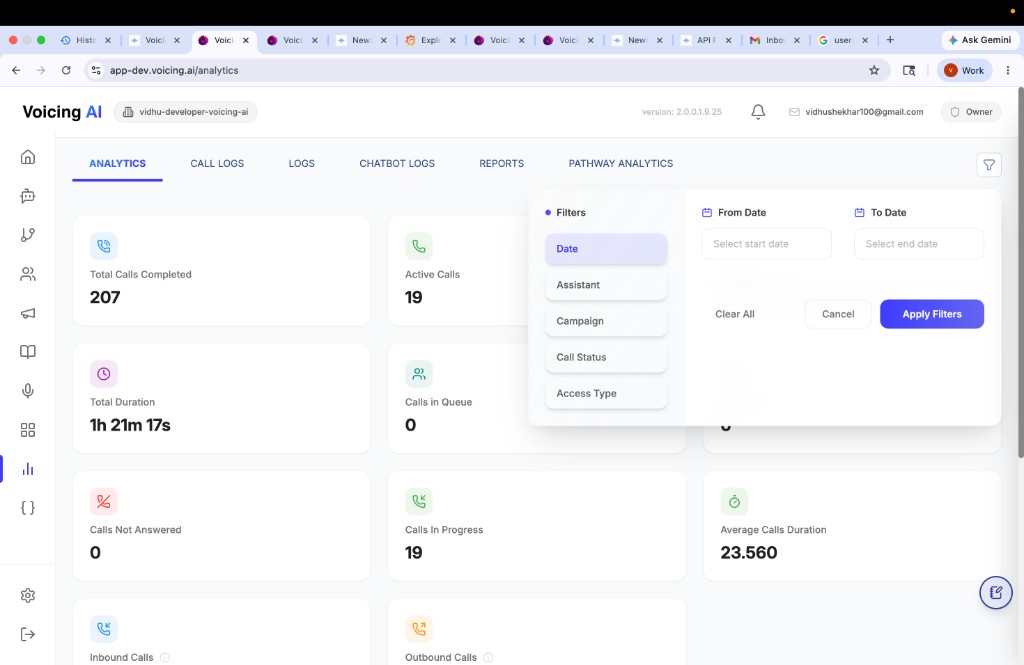
The Analytics tab shows high-level call metrics in cards, such as:
- Total calls completed
- Total duration
- Calls not answered
- Active calls and calls in progress
- Average call duration
- Inbound and outbound call counts
Use the filter button to narrow results by Date, Assistant, Campaign, Call Status, or Access Type. This helps you review only the calls you care about (for example, one assistant or one test day).
Call Logs
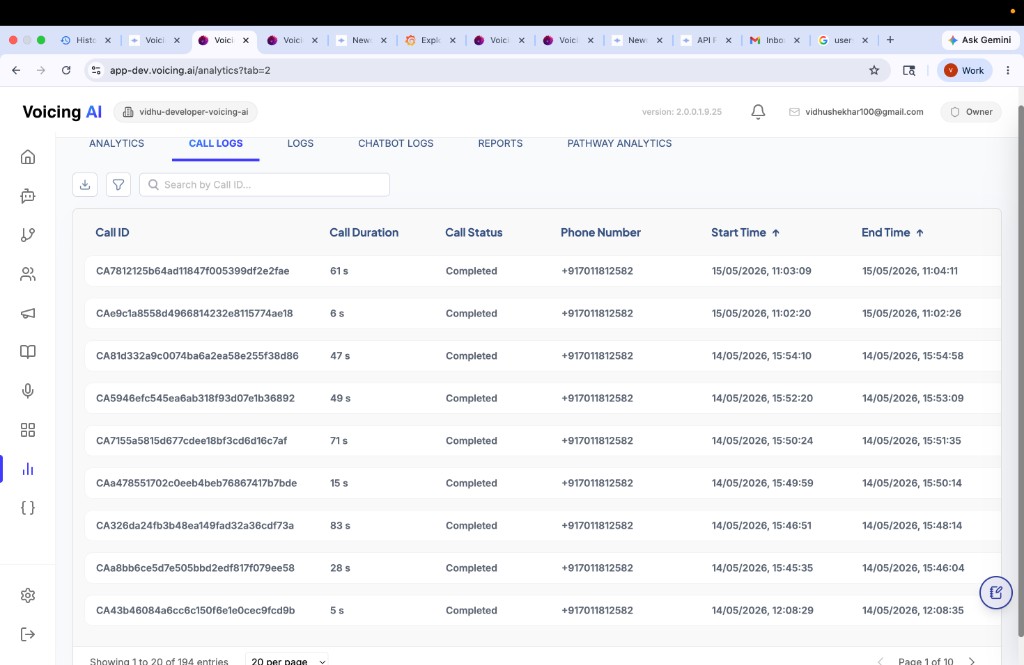
Open the Call Logs tab to see a row-by-row list of calls. Each row typically includes:
| Column | What it shows |
|---|---|
| Call ID | Unique ID for the call (use search to find a specific call). |
| Call duration | How long the call lasted. |
| Call status | Whether the call completed, failed, or had another outcome. |
| Phone number | Number used for the call. |
| Start time / End time | When the call began and ended. |
From this screen you can search by Call ID, apply filters, and download logs for reporting.
Reviewing recordings, transcripts, and outcomes
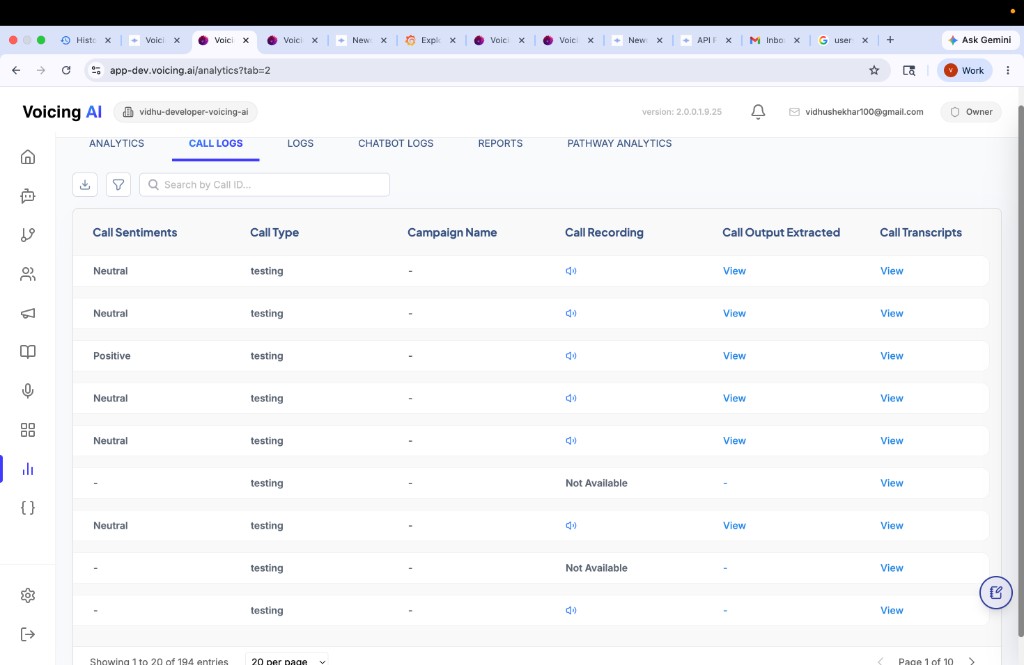
In Call Logs, scroll or open additional columns to review quality details:
| Column | What it shows |
|---|---|
| Call sentiments | Overall tone (for example, Neutral, Positive). |
| Call type | Type of call (for example, testing or production). |
| Campaign name | Campaign linked to the call, if any. |
| Call recording | Play the audio recording when available. |
| Call output extracted | Structured data pulled from the conversation. |
| Call transcripts | Full text of what was said on the call. |
Use View on transcripts and extracted output to understand why a call succeeded or failed, then improve the assistant prompt, pathway, Knowledge Base, or tools.
Logs (Historic and Live Calls)
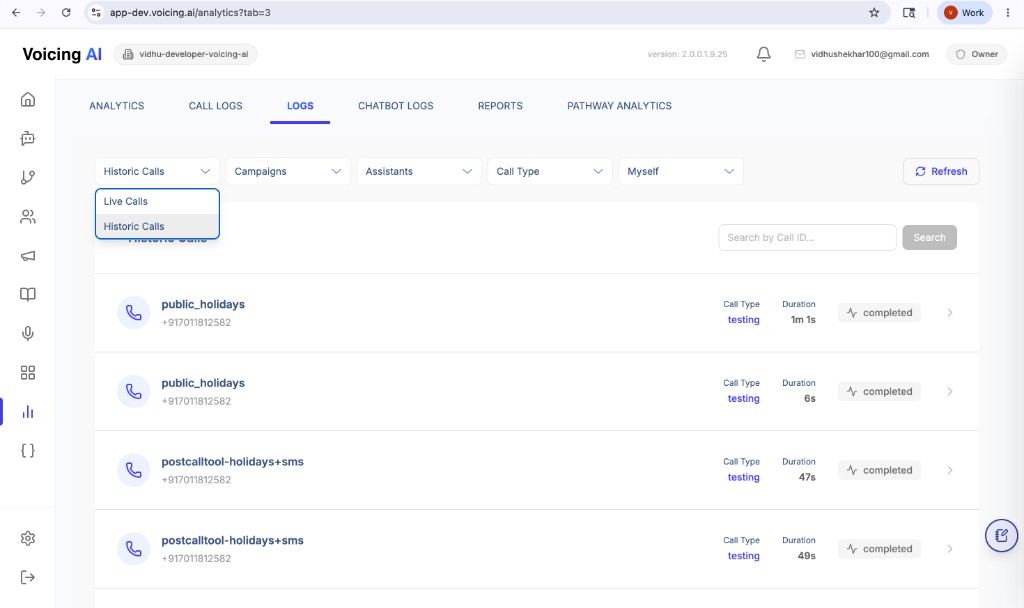
Open the Logs tab when you want a simpler call list with quick filters. This view is useful for day-to-day monitoring and spot-checking recent activity.
What you can do here:
| Control | What it does |
|---|---|
| Call state | Switch between Live Calls and Historic Calls. |
| Campaigns | Filter calls by campaign. |
| Assistants | Filter calls by assistant. |
| Call type | Filter by call type (for example, testing). |
| User | Filter by user (for example, Myself). |
| Search | Find a specific call using Search by Call ID. |
| Refresh | Reload the latest call list. |
Each log row shows the assistant/pathway name, phone number, call type, duration, and status (for example, completed). Click the arrow on a row to open more details for that call.
Chatbot Logs
If your assistant supports chat (not only voice calls), use the Chatbot Logs tab to review text conversations.
What you can review:
| Item | What it means |
|---|---|
| Assistant name | Which assistant handled the chat. |
| Duration | How long the chat session lasted. |
| Status | Whether the chat completed or ended early. |
| Search | Use Search chats to find a specific session. |
Use Chatbot Logs to check whether the assistant answered correctly, stayed on topic, and completed the conversation as expected.
Pathway Analytics
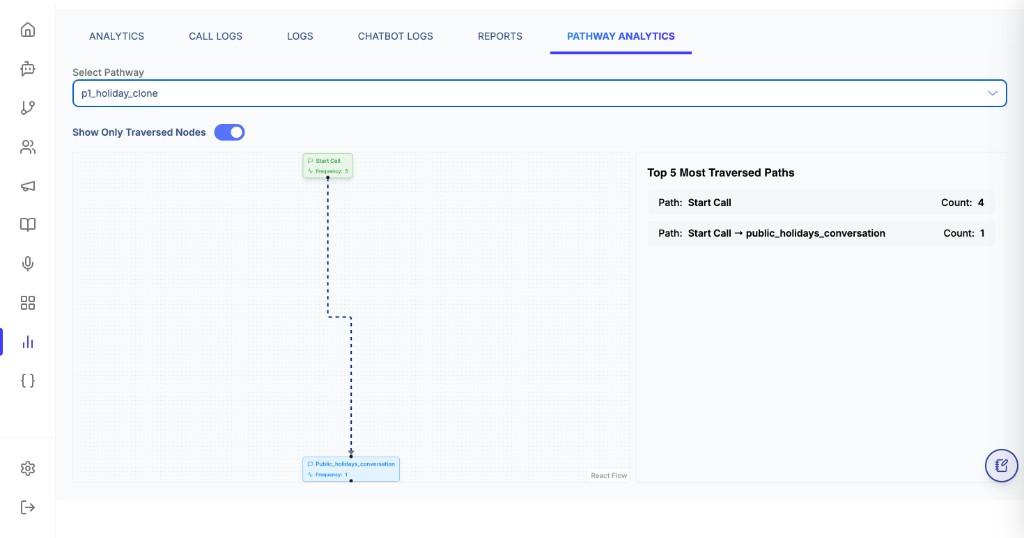
Open Pathway Analytics to see how callers move through a selected pathway. This helps you find drop-off points and improve the flow.
How to use it:
- Select a pathway from the Select Pathway dropdown.
- Turn on Show Only Traversed Nodes to hide steps that were never reached.
- Review the visual flow chart and note the Frequency on each node (how many times that step was reached).
- Check Top 5 Most Traversed Paths to see the most common routes callers took.
Example insight: if many calls start but few reach the next node, users may be disconnecting early or the opening step needs improvement.
What to check after calls or campaigns
Use Analytics to answer questions like:
- How many calls were attempted?
- How many calls connected or completed?
- How many calls failed or were not answered?
- How long did calls last?
- Did users complete the intended flow?
- Do transcripts show clear, helpful conversations?
- Are failures caused by contact data, provider settings, pathway issues, tools, or Knowledge Base answers?
Quick review sequence for newcomers
- Check Total calls vs Connected calls.
- Check Failed calls and top failure reasons.
- Check Average duration and outlier short calls.
- Open Call Logs and inspect a small sample of completed and failed calls.
- Review Transcripts and Call output extracted.
- If flow issues are suspected, open Pathway Analytics.
Metrics to Review
| Metric | What it means | What to look for |
|---|---|---|
| Total calls | Number of calls attempted. | Confirms the campaign/test actually ran. |
| Connected calls | Calls that were answered or connected. | Shows usable call volume. |
| Failed calls | Calls that did not complete successfully. | High failures may mean contact/provider issues. |
| Call duration | Length of each call. | Very short calls may mean disconnects or poor opening prompt. |
| Average call duration | Average length across calls. | Helps compare test runs or campaigns. |
| Call status | Final state of each call. | Review completed, failed, transferred, no answer, etc. |
| Campaign performance | Summary of one campaign. | Helps compare contact lists and campaign setup. |
| Assistant performance | How one assistant performs across calls. | Helps improve prompt, tools, and pathway. |
| Transcripts/conversation logs | Text record of the call, if available. | Use this to see exactly what happened. |
| Sentiment or outcome | User mood or result label, if available. | Helps understand call quality. |
| Transfer count | Number of calls transferred, if available. | High transfers may mean the assistant is not resolving issues. |
Example Analytics Summary
| Metric | Example value |
|---|---|
| Total Calls | 100 |
| Connected Calls | 82 |
| Failed Calls | 18 |
| Average Duration | 2m 10s |
| Transferred Calls | 12 |
How to Interpret Results
| Pattern | Possible meaning | Suggested action |
|---|---|---|
| High failed calls | Contact list or calling provider issue. | Check phone number format and provider settings. |
| Very short call duration | Callers disconnect early or the opening message is weak. | Improve the first prompt and test again. |
| High transfer count | Assistant or pathway is not resolving enough queries. | Review transcripts and improve pathway/KB/tool coverage. |
| Low completion rate | Pathway, tool, or Knowledge Base issue. | Test each step and simplify the flow. |
| Confusing transcripts | Prompt may be too broad or unclear. | Rewrite prompt with clearer instructions. |
Troubleshooting shortcuts
- If failures are high: start with number format, provider status, and campaign settings.
- If durations are too short: improve opening line and first intent capture step.
- If transfers are high: expand Knowledge Base coverage and improve pathway branches.
- If outcomes are inconsistent: inspect 10-20 transcripts and tune prompt instructions.
Last updated: [05/28/2026]