Audit Logs Guide
Audit Logs are your organization’s activity ledger on Voicing AI. They record who did what, when it happened, whether it succeeded, and which resource was affected — across user sessions, system processes, permission changes, and API token lifecycle events.
This guide explains the theory behind Audit Logs, how to read them in the product, and how the platform loads and filters events behind the scenes.
Table of Contents
- What are Audit Logs?
- Core concepts (the five Ws)
- Why Audit Logs matter
- Where to open Audit Logs
- Page layout and controls
- Search and filters in depth
- Action categories and event types
- Reading an event row
- Pagination, sorting, and refresh
- Retention and permissions
- Backend API (how data is loaded)
- Investigation workflows
- Troubleshooting
- Best practices
1. What are Audit Logs?
Audit Logs answer one question for your workspace:
What important activity happened, and who or what caused it?
They are not the same as Analytics call logs or chatbot conversation logs. Those products focus on customer-facing interactions (calls, chats, pathway steps). Audit Logs focus on platform governance: authentication, permissions, roles, API tokens, organization context, and other security-relevant changes.
The page subtitle states the scope clearly:
Every user action, system event, and API call across your organization.
In practice, that means:
| Category | Examples |
|---|---|
| User lifecycle | Signup, login, logout, SSO, password reset |
| Access control | Permission requests, role updates, custom permission changes |
| API security | Create/regenerate API tokens, token status updates |
| System behavior | Organization switch, automated sign-out, background policy actions |
Audit events are append-only from a user perspective: you review history; you do not edit or delete individual rows in the UI. Retention length is governed by your organization’s policy (see Retention and permissions).
flowchart LR
  subgraph sources [Event sources]
    U[User actions]
    S[System processes]
    A[API / token changes]
  end
  subgraph store [Audit store]
    L[Audit log records]
  end
  subgraph ui [Audit Logs UI]
    F[Search and filters]
    E[Event list]
  end
  U --> L
  S --> L
  A --> L
  L --> F
  F --> E
2. Core concepts (the five Ws)
Every audit event can be understood through five dimensions. Learning these makes filtering and API queries much easier.
| Concept | Question it answers | Typical values |
|---|---|---|
| Actor | Who performed the action? | A user email, system, or an automated principal |
| Action | What operation occurred? | User Login, Update Role Permissions, Create API Token, … |
| Resource | What object was affected? | User ID, role ID, token ID, organization — often exposed as resource ID in search |
| Result | Did it succeed or fail? | Success, Failure (and related outcomes) |
| Timestamp | When did it happen? | Shown in local-friendly format (e.g. 14 May 2026, 14:00) |
Change summary is the human-readable sentence combining action + context (for example, system signed out User or switched Organization). Search matches this text along with actor and resource fields.
Actor types in practice:
- Human user — email visible in the Actor column or filter.
- System — platform-initiated events (org switch, forced sign-out, policy-driven updates). The actor label is often literally
system. - API-related actors — token create/regenerate events tie back to whoever created the token or the integration that used it; always cross-check timestamps with your change window.
3. Why Audit Logs matter
Security and accountability
When permissions or API tokens change, Audit Logs provide a verifiable trail. If an account gains unexpected access, you can filter by Update User Permissions, Approve Permission Request, or API TOKEN actions and see the exact time and actor.
Compliance and governance
Many teams need to demonstrate who approved access and when credentials rotated. Audit Logs support internal audits without exporting raw database tables.
Incident response
During outages or “I was logged out” reports, reconstruct a timeline:
- Set time range around the incident.
- Filter by user (Actor) or search
signed out/logout. - Read events newest-first to see the sequence.
Operational transparency
Admins can confirm whether a configuration change was intentional (role update, token regeneration) before rolling back unrelated settings.
4. Where to open Audit Logs
- Sign in to Voicing AI (
app.voicing.aior your environment, e.g.app-dev.voicing.ai). - Confirm the correct workspace / organization in the header (audit data is scoped to the current org).
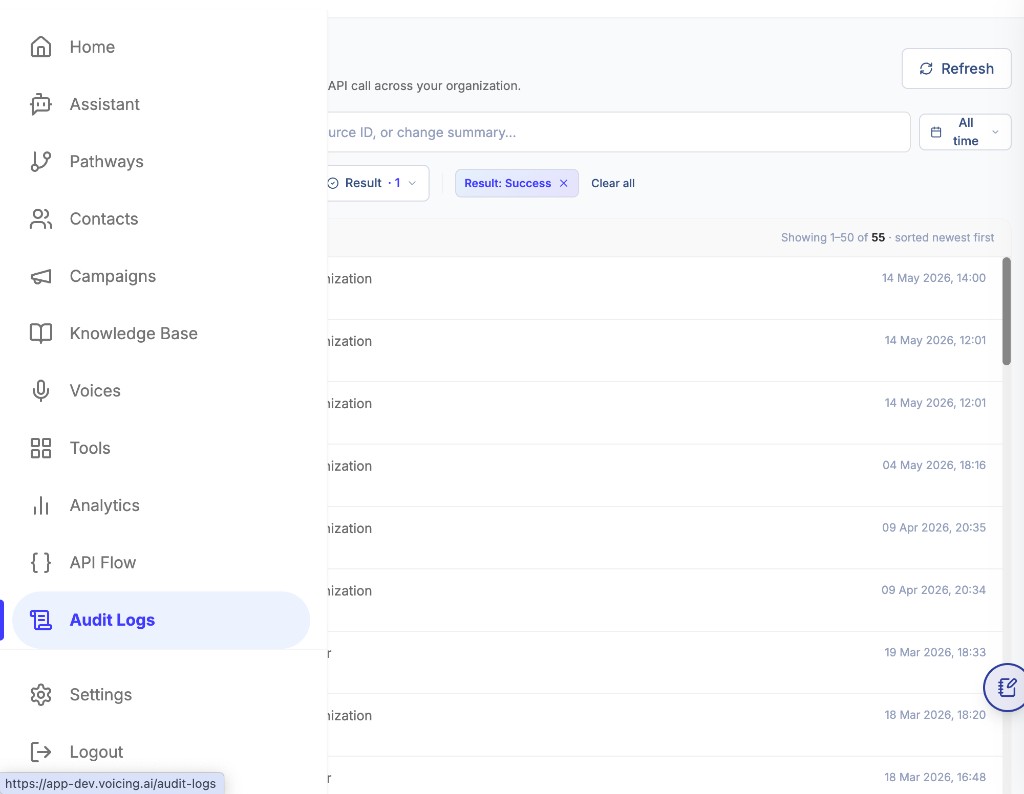
- In the left sidebar, click Audit Logs (below API Flow in the platform navigation).
- The URL path is typically
/audit-logs.
Who can see this page?
Usually Owner or admin-level roles. If you do not see Audit Logs in the sidebar, your role may not include audit read permission — contact your workspace owner.
5. Page layout and controls
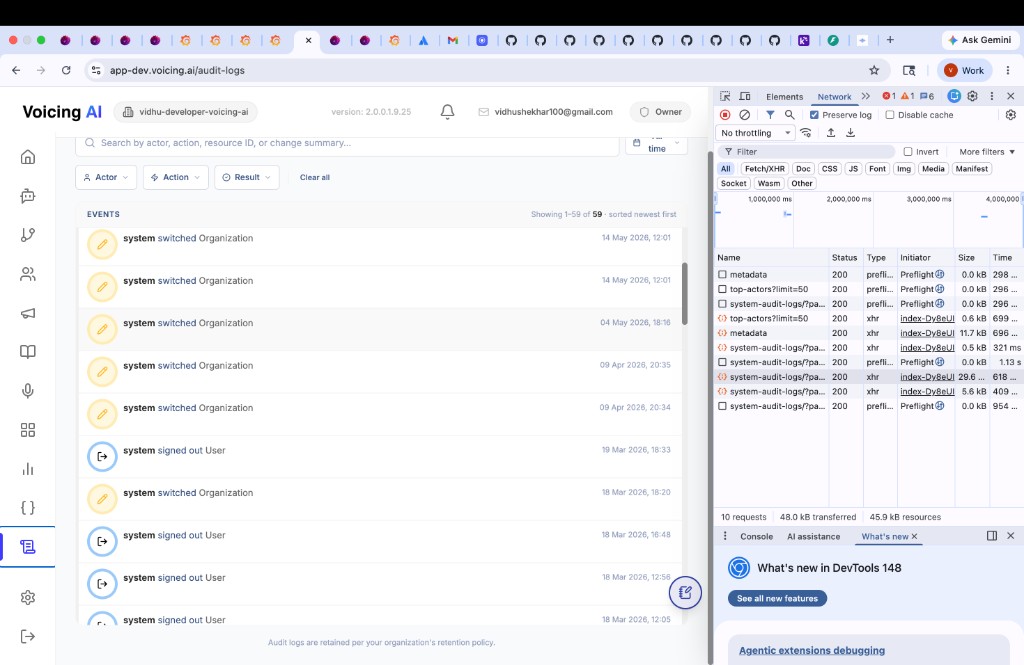
The screen divides into three layers.
Header
| Control | Purpose |
|---|---|
| Title + description | Confirms you are on the org-wide audit view |
| Search | Free-text search across actor, action, resource ID, change summary |
| Refresh | Reloads the latest events from the API (use after another admin makes a change) |
| Time range | Limits events to a period (e.g. All time, or a custom window when selected) |
Filter bar
| Filter | Purpose |
|---|---|
| Actor | Restrict to one or more actors (populated from frequent actors in the org) |
| Action | Restrict to categorized event types (USER, ROLE, PERMISSION, API TOKEN, …) |
| Result | Restrict by outcome (e.g. Success) |
| Clear all | Removes active filter tags |
Active filters appear as removable chips (example: Result: Success).
Events list
- Summary line: e.g.
Showing 1–50 of 55 · sorted newest first - Scrollable list of rows: icon, actor, action text, timestamp
- Footer note: retention policy reminder
6. Search and filters in depth
Search behavior
The search placeholder guides what you can match:
Search by actor, action, resource ID, or change summary…
Tips:
- Use a full or partial email for a specific user.
- Search action labels (
SSO Login,Regenerate API Token). - Paste a resource ID when support gives you one from another system.
- Use keywords from the visible row text (
signed out,Organization).
Search works together with dropdown filters: narrowing with Action first, then searching within results, is often faster than scrolling.
Actor filter
The UI loads actor suggestions from the backend (commonly via a top actors endpoint). Pick an actor to see only their events. Useful for:
- Reviewing all actions by one admin before offboarding
- Verifying what
systemdid during a session issue
Result filter
Filter by Success (or other outcomes your deployment exposes) to hide failed attempts or to focus on failures only during brute-force investigations.
Time range
- All time — full history within retention.
- Custom range — when selected, the UI sends
start_dateandend_dateas ISO 8601 timestamps to the list API (see Backend API).
Combining filters
Example: “Did user X successfully log in last week?”
- Time range → last 7 days
- Actor → user email
- Action →
User LoginorSSO Login - Result → Success
Remove chips one-by-one or use Clear all to reset.
7. Action categories and event types
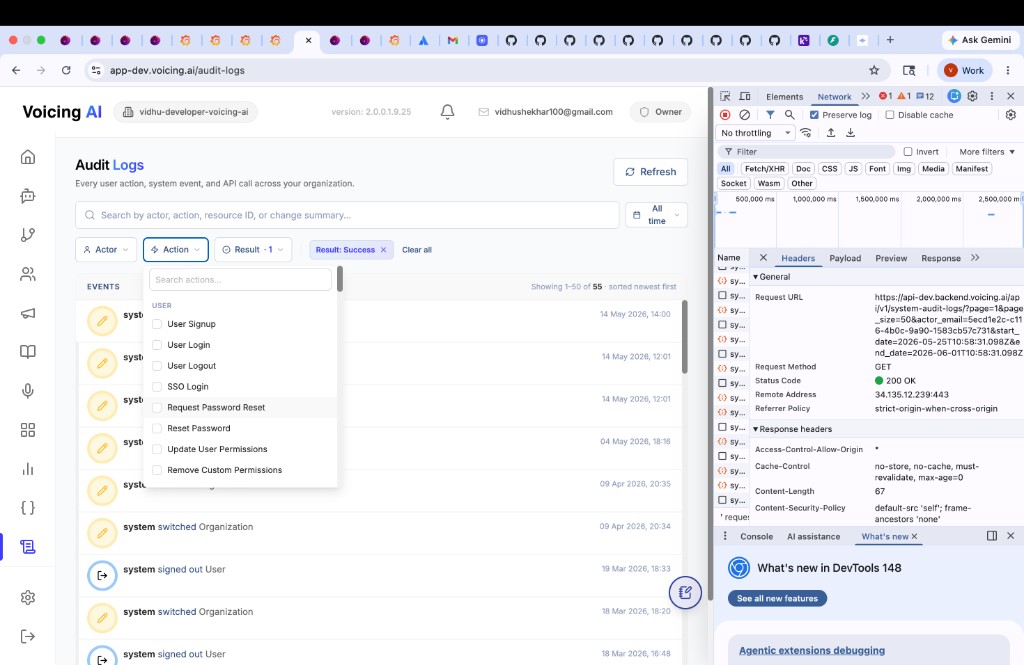
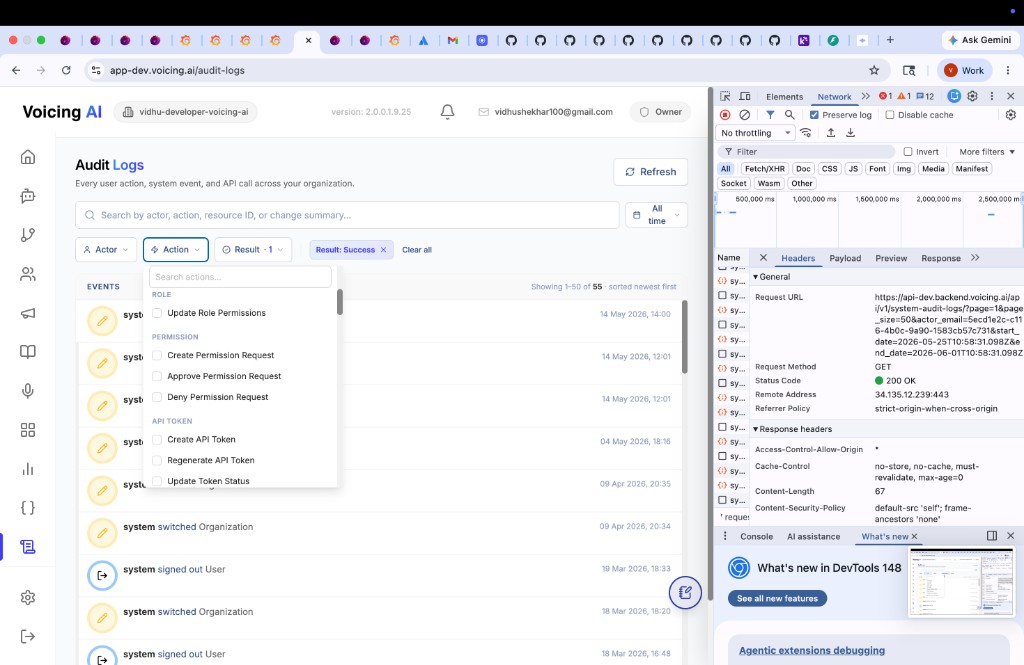
The Action dropdown groups events so you do not need to memorize every label. Categories reflect how the backend classifies audit actions.
USER
Authentication and profile-related events.
| Action | When it is recorded |
|---|---|
| User Signup | New account registration |
| User Login | Standard email/password login |
| User Logout | User-initiated sign out |
| SSO Login | Single sign-on authentication |
| Request Password Reset | Reset flow started |
| Reset Password | Password successfully changed |
| Update User Permissions | Direct permission change on a user |
| Remove Custom Permissions | Custom grants removed |
ROLE
| Action | When it is recorded |
|---|---|
| Update Role Permissions | Role definition or attached permissions changed |
PERMISSION
Workflow for permission requests (common in larger teams).
| Action | When it is recorded |
|---|---|
| Create Permission Request | User or admin requested additional access |
| Approve Permission Request | Request approved |
| Deny Permission Request | Request rejected |
API TOKEN
| Action | When it is recorded |
|---|---|
| Create API Token | New REST/API key created |
| Regenerate API Token | Existing token rotated |
| Update Token Status | Enabled/disabled or similar status change |
Additional categories may appear as the product evolves (assistants, campaigns, telephony, etc.). Use the metadata API (below) in your environment to list the full current set.
8. Reading an event row
Each row is one immutable audit record in the UI.
| UI element | Meaning |
|---|---|
| Icon | Visual hint (edit/pencil for config changes, exit icon for sign-out, etc.) |
| Actor | Principal that triggered the event |
| Action line | Short description of the change |
| Timestamp | When the server recorded the event (org timezone display) |
Example rows and how to read them
| What you see | Interpretation |
|---|---|
system · switched Organization | Workspace context changed (user moved between orgs or default org updated) |
system · signed out User | Session ended by system policy, admin action, or security flow — not necessarily user clicking Logout |
User email · User Login | Successful authentication for that account |
User email · Update Role Permissions | Role matrix changed; verify which role and who approved |
When investigating, read newest first (default sort), then walk backward until you find the triggering event.
9. Pagination, sorting, and refresh
| Behavior | Detail |
|---|---|
| Sort order | Newest first (most recent at top) |
| Page size | Typically 50 events per page |
| Pagination | Summary shows range and total (1–50 of 55) |
| Refresh | Fetches latest page from server; use after applying filters elsewhere |
If an event you expect is missing:
- Go to page 2+ if total count exceeds page size.
- Widen or clear the time filter.
- Clear Result or Action filters that may hide it.
- Wait a few seconds and Refresh (write propagation delay is rare but possible).
10. Retention and permissions
Retention
The UI states:
Audit logs are retained per your organization's retention policy.
Implications:
- Older events are purged automatically after the configured period.
- Long-term archival for compliance must be handled outside the product (exports, SIEM, etc.) if required by your policy.
- Do not assume “All time” means forever — it means “all time within retention.”
Access control
- Viewing Audit Logs is a privileged operation.
- Restrict admin/owner roles to trusted operators.
- Pair Audit Log reviews with your API token rotation policy.
11. Backend API (how data is loaded)
The web app loads Audit Logs over REST. Understanding the endpoints helps developers build internal dashboards or validate integrations.
Primary list endpoint
GET /api/v1/system-audit-logs/
Common query parameters:
| Parameter | Type | Purpose |
|---|---|---|
page | integer | Page number (1-based) |
page_size | integer | Records per page (e.g. 50) |
actor_email | string (UUID/email) | Filter by actor |
start_date | ISO 8601 UTC | Window start |
end_date | ISO 8601 UTC | Window end |
| action / result filters | varies | Match UI filter selections |
Example (as used when a date window is applied):
GET /api/v1/system-audit-logs/?page=1&page_size=50&start_date=2026-05-25T10:58:31.098Z&end_date=2026-06-01T10:58:31.098Z
Typical response: 200 OK with a paginated JSON body (list of events + total count). Exact field names depend on your API version; expect at minimum actor, action code/label, result, timestamp, and resource identifiers.
Supporting endpoints
The Network panel in the browser often shows companion calls:
| Endpoint | Role |
|---|---|
GET .../system-audit-logs/metadata | Action types, filter enums, schema for the UI |
GET .../system-audit-logs/top-actors?limit=50 | Populates the Actor filter with frequent actors |
Authenticate these calls the same way as other platform APIs (session cookie / bearer token for the logged-in user). Do not expose audit export scripts with production credentials in client-side code.
Relationship to API Flow
API Flow documents outbound call and chatbot integration APIs (x-api-key). Audit Logs document governance APIs (system-audit-logs). Token creation and regeneration appear in Audit Logs; actual call traffic appears in Analytics and API Flow observability.
12. Investigation workflows
A. “User lost access overnight”
- Open Audit Logs → set time range to last 24 hours.
- Actor filter → affected email.
- Action → PERMISSION + ROLE.
- Look for
Deny Permission Request,Remove Custom Permissions, orUpdate Role Permissions. - Note actor and timestamp; revert via Settings if unintended.
B. “Was this API key rotated?”
- Action → API TOKEN.
- Search
RegenerateorCreate. - Confirm actor and time with the engineer who deployed.
- Invalidate old keys in Settings if rotation was unauthorized.
C. “Unexpected logout”
- Search
signed outor filter logout-related USER actions. - Check for
system signed out UservsUser Logout. - Correlate with SSO or password reset events on the same timeline.
D. “SSO login failures”
- Action →
SSO Login. - Result → Failure (if available).
- Compare with
User Loginsuccesses to isolate IdP vs password issues.
E. Weekly security review
- Time range → last 7 days.
- Scan API TOKEN and PERMISSION categories.
- Document anomalies in your runbook.
- Rotate tokens that have not been rotated per policy.
13. Troubleshooting
| Symptom | Likely cause | What to do |
|---|---|---|
| Empty list | Filters too strict or wrong org | Clear all filters; confirm workspace |
| Missing recent event | Pagination or retention | Next page; refresh; check retention policy |
| Cannot open page | Insufficient role | Ask owner for audit access |
| Duplicate-looking rows | Separate actions in one flow | Read timestamps; login + org switch may be seconds apart |
| Search returns nothing | Typo or wrong field | Try actor email or partial action text |
14. Best practices
- Review regularly — weekly or monthly scans of PERMISSION and API TOKEN categories.
- Investigate before changing access — filter Audit Logs first, then adjust roles in Settings.
- Treat
systemevents seriously — they often reflect policy, not user error. - Use time windows — narrow date ranges speed up API and UI queries.
- Document outcomes — when you find who changed a role, record it in your ticket system.
- Least privilege — limit who can view Audit Logs and who can approve permission requests.
- Align with API Flow — after token changes in Settings, verify
Create/Regenerateentries match your deployment log.
Last updated: 06/01/2026