Releases (Changelog)
Overview
The Releases tab shows the latest changes that have been deployed to the Voicing AI platform. Think of it as a changelog: every published release captures what changed, when it was published, and what you should know before using the updated functionality.
This helps teams to:
- Track what’s new in the platform over time
- Validate deployments (confirm a change has been published)
- Share release notes internally with support, sales, and customer success
- Troubleshoot faster by mapping behavior changes to a specific release
What you see in the Releases tab
Releases list
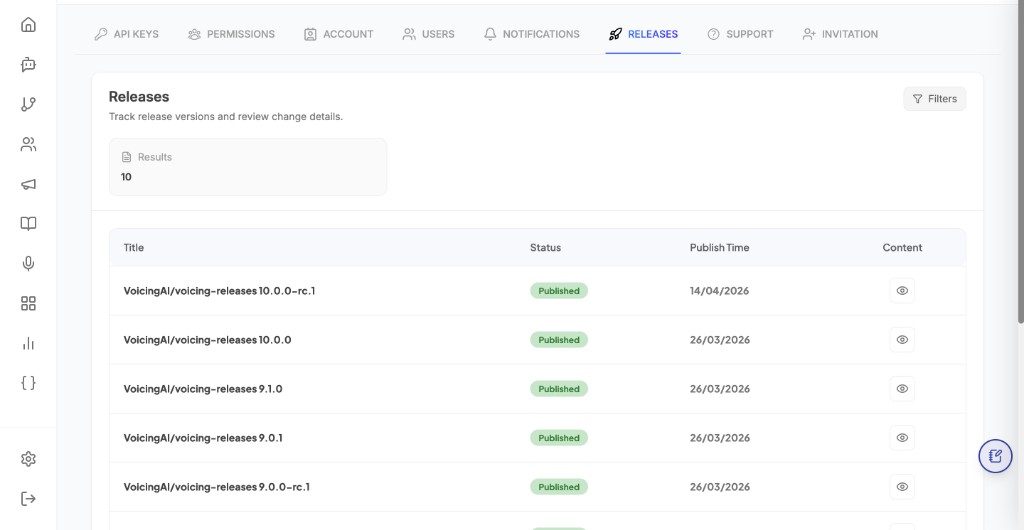
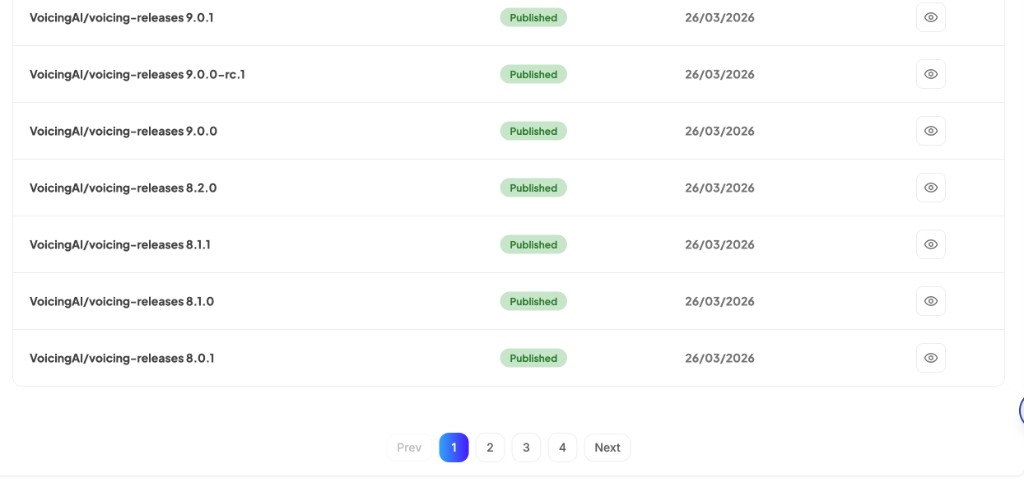
The main Releases screen displays a list of published releases. Each row typically includes:
- Title: the release name/version identifier
- Status: whether the release is published
- Publish time: the date/time the update went live
- Content / View: opens the detailed changelog for that release
Release details (changelog content)
When you open a release, you can view the changelog content for that specific deployment. This is the source of truth for what changed in that version of the platform.
Use the details page to:
- Review the exact list of changes
- Verify fixes or improvements you were waiting for
- Compare behavior across releases while debugging
Filters
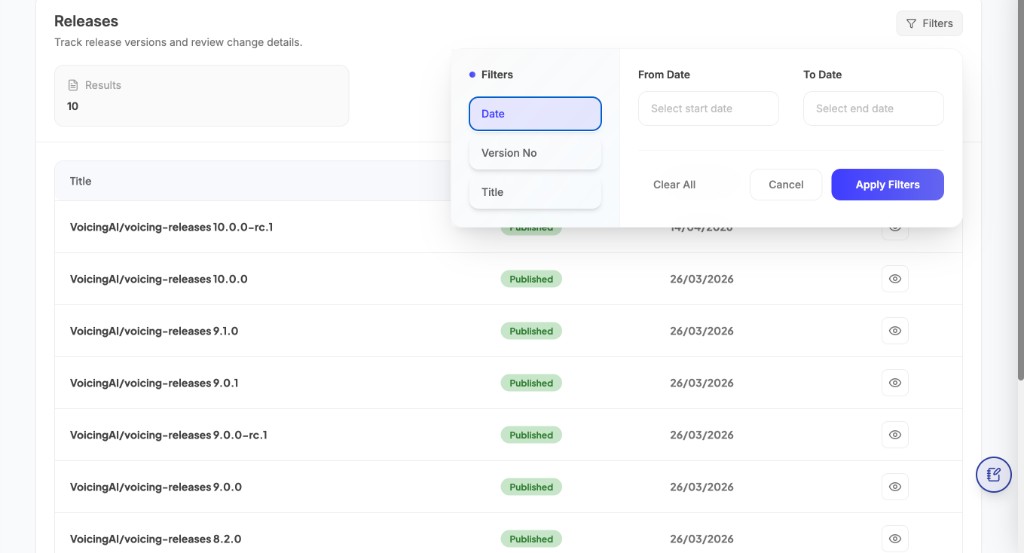
The Releases tab includes Filters to help you quickly find a specific release or narrow down the changelog list when there are many entries.
Filter types
Date (From Date / To Date)
Use the date range filter when you want to see releases published within a specific time window.
- From Date: start of the range
- To Date: end of the range
Common use cases:
- Find everything deployed this week or this month
- Check releases around a specific incident date
Version No
Use Version No when you know the release version identifier (or a part of it) and want to locate it quickly.
Common use cases:
- Confirm whether a given version is already published
- Jump to a specific release before sharing notes with a team
Title
Use Title when you remember the release name/repository label and want to narrow results by matching text.
Common use cases:
- Search for release titles that include a certain module name or repository prefix
Applying and clearing filters
- Apply Filters: runs the search using your selected filter values and refreshes the list
- Clear All: resets filter values back to default
- Cancel: closes the filter panel without applying changes
Best practices
- Check Releases before reporting a bug: a fix may already be deployed.
- Use Releases during QA: validate that the intended change is present after deployment.
- Share links to release details internally when communicating product updates.
Last updated: [04/08/2026]